Introducing broker flow.
The IB-specific operational journey, getting IB approval against the CU number, generating referral links, tracking referred clients, and reading the full Reports suite. Registration & KYC are identical to Doc 01.
This document focuses on what is unique to the IB lifecycle after they're a verified MarketsVox account holder, getting approved as an IB, generating referral links, tracking referred clients, and reading the My Reports suite. The pre-step registration & KYC are identical to standard client onboarding (Doc 01); the only difference is which referral link the new partner signs up through.
Registered → Approved → Tracking
- Partner signs up through the IB Referral Link (not the Client Referral Link)
- Completes the same KYC flow as any MarketsVox client (Doc 01)
- CU number is issued and checked with MarketsVox
- MarketsVox approves the account as an IB on 10X
- IB Area unlocks, referral links, clients, reports
Linking → Reports
- Phase 1 · Steps 1–19, IB linking, referral links, client tracking
- Phase 2 · Reports Reference, the 7-tab My Reports suite
Five ground rules support should reinforce
- Without IB approval against the CU number, IB functionality is not enabled, tracking and campaigns will not work
- Only clients who register through the Client Referral Link are tracked under the IB, manual re-tagging is not supported
- Always track clients via their CU number: it is the unique identifier inside MarketsVox
- If a referred client is missing from the list, they likely did not use the IB's referral link
- Clients must complete full Step I & Step II verification to become fully active
Where this flow ends and Doc 08 begins
This document covers the operational side of being an IB, registration, linking, link generation, client tracking, and reading the reports. The mechanics of how rebates are calculated and paid out (volumes, schedules, withdrawal of IB earnings) live in Doc 08, Withdrawals · Profit Share · Rebates.
Before any IB-specific work begins, the new partner registers on 10X and completes KYC. This journey is identical to the standard MarketsVox client onboarding flow already documented in Doc 01 · Client Onboarding. Same form fields, same email verification, same Step I & Step II KYC. The only thing that differs is which referral link the new partner enters through.
Client Referral Link
They become an attributed trading client under whichever IB shared the link.
IB Referral Link
They become a registered MarketsVox account that's eligible to be approved as an IB on 10X.
Read the full walkthrough, Doc 01
12 steps, 3 phases, sign-up, email verification, KYC Step I & Step II.
When the pre-phase is complete, the new IB has
- A verified MarketsVox account (Step I + Step II KYC passed)
- A CU (Customer) Number issued and delivered by email
- Full account functionality (deposits, withdrawals, trading)
- Ready to begin Phase 1 of this doc, IB approval against the CU number
CU number assigned
After registration, the client is assigned a CU (Customer) Number: the unique identifier for the client inside MarketsVox.
- CU number is generated when the account is created
- The CU number is sent to the client via email
- It is the unique identifier for the client inside MarketsVox
On the MarketsVox dashboard, on the left side of the navigation at the bottom along with the client's name and account status.
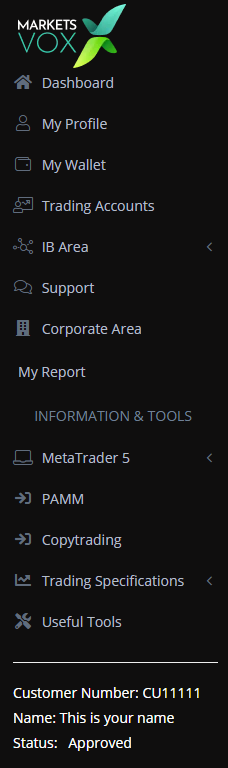
Why the CU number matters
Every IB action, approval, tracking, reporting, is keyed off the CU number. Always reference clients via their CU number, not their name or email.
IB approval process
Before a client can function under an IB structure, the CU number must be checked with MarketsVox and the client must be approved as an IB on 10X.
- The CU number is checked with MarketsVox
- MarketsVox approves the client as an IB on 10X
- IB functionality is enabled on the account
Without this step
IB functionality may not be fully enabled. This step is required for proper tracking and campaign usage. Any referrals made before approval may not be attributed correctly.
How to verify approval
On the MarketsVox left-nav footer block, the status will show Status: Approved. If status is anything other than Approved, IB tools will not work.
Open My Campaigns
Once IB approval is complete, the IB navigates to My Campaigns inside the IB Area. This is the entry point to generating the client referral form. Locate the campaign row you'll attach the form to.

Click Marketing Tools
On the campaign row, click the 3-line menu at the right edge. From the dropdown, select Marketing Tools: the entry point for generating the client form embed.
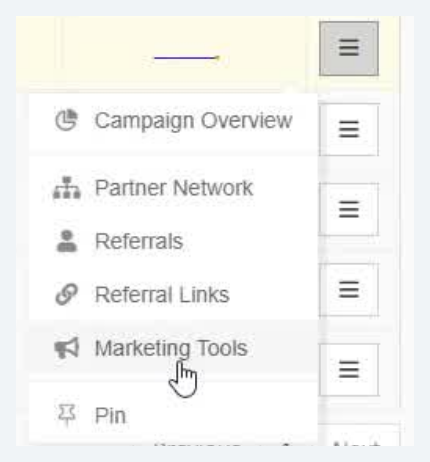
What's in the dropdown
The 3-line menu lists Campaign Overview, Partner Network, Referrals, Referral Links, Marketing Tools, and Pin. Marketing Tools is the option we want, generating the client form embed lives inside it.
Generate the client form
Inside the Marketing Tools modal, pick the Forms tab, set Target = Clients, leave Channel at System Default, then click Generate.
- Tab: Forms (key for client sign-up form generation)
- Language: English (or preferred)
- Target: must be Clients
- Channel: System Default (or a configured tracking channel)
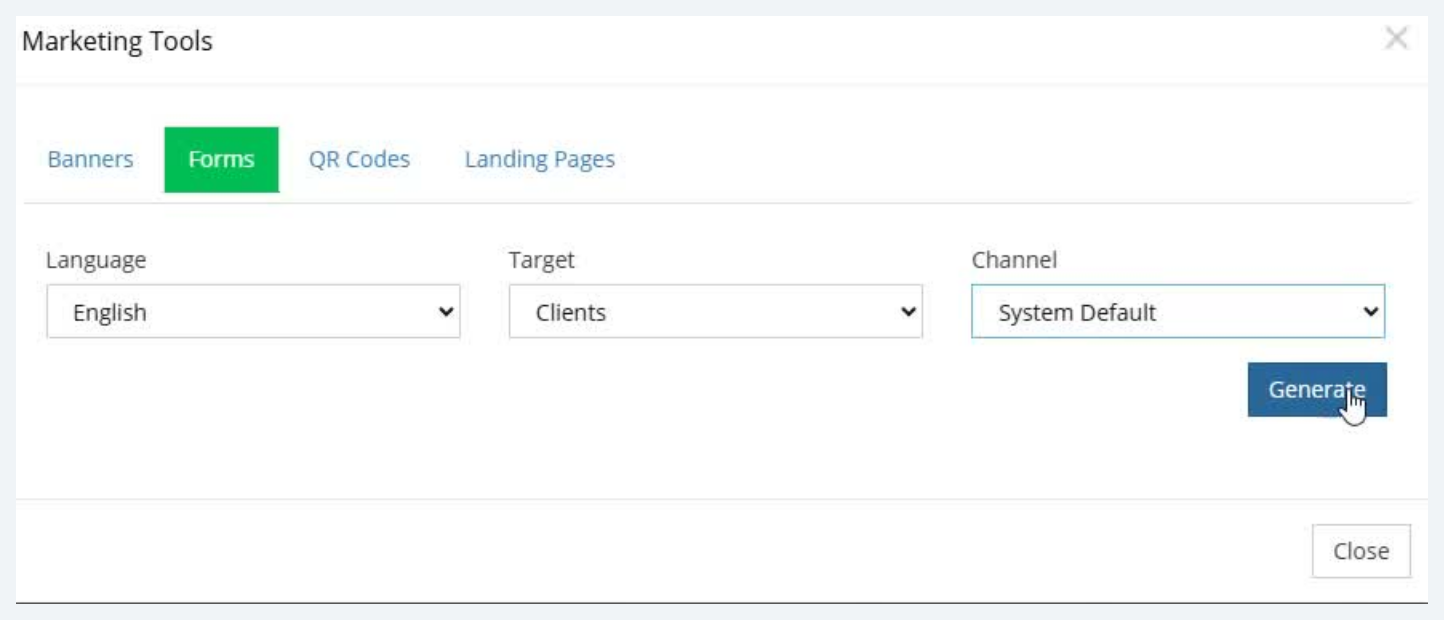
Why Target = Clients matters
Target controls who the generated form registers as. Clients means anyone who fills out the form becomes a referred client of the IB, tracked, attributed, and counted toward rebates. Always confirm Target is set to Clients before clicking Generate.
Copy the code snippet
Clicking Generate opens the Code Snippet modal with the embed HTML/JS. This snippet is the artifact the IB hands off to the 10X Dashboard in Step 07 to produce the branded sign-up URL.
- Script tag: include in
<head>, loads init.js from client.marketsvox.com - Form placeholder div: place where the registration form should render
- Tracking pixel: include anywhere in
<body>to track impressions
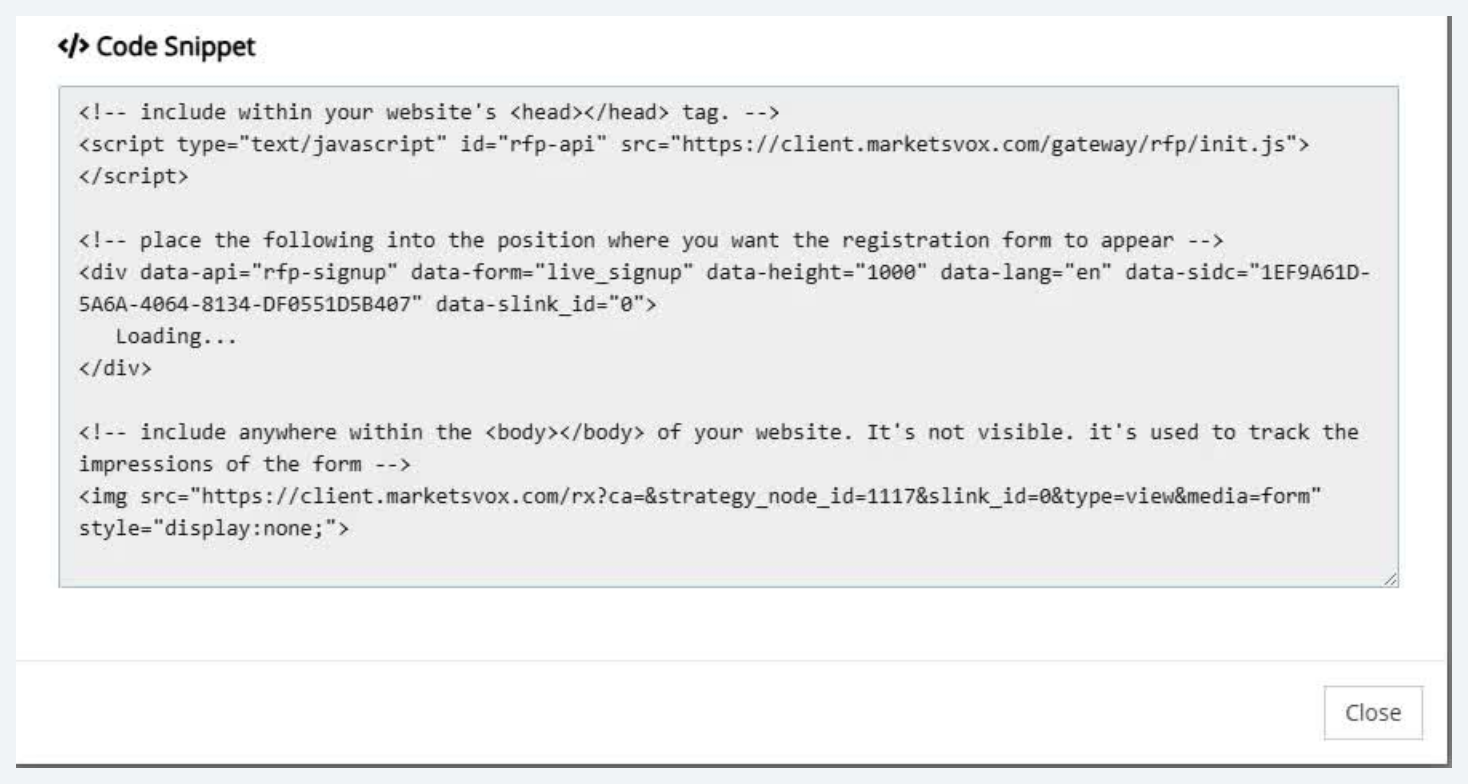
Hand off to Step 07
MarketsVox embed code snippet: the HTML/JS the IB pastes into the 10X Dashboard Referral Link tool.
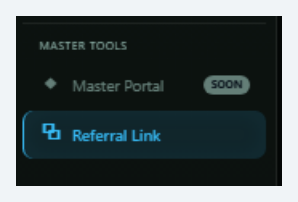
Open Master Tools in 10X Dashboard
With the MarketsVox embed code from Step 06 in hand, the IB switches over to the 10X Dashboard. In the sidebar, expand Master Tools and select Referral Link.
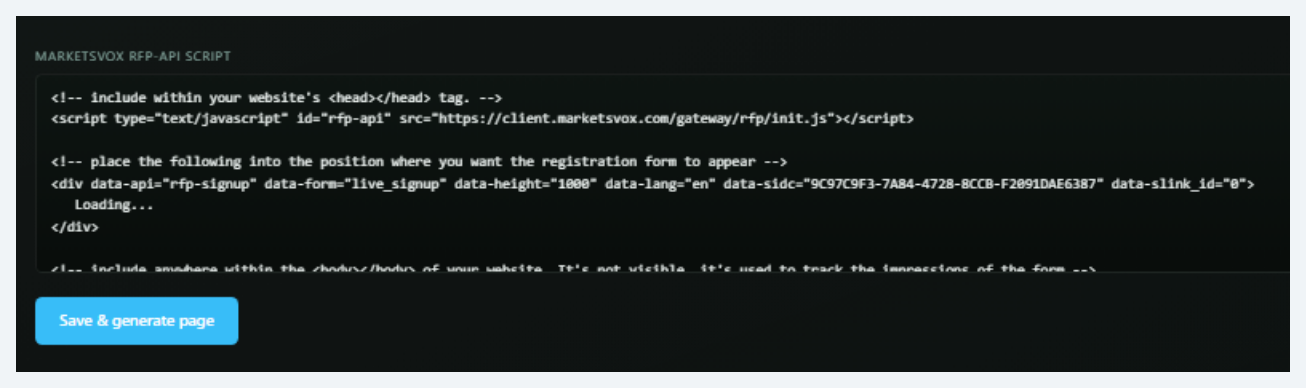
Paste the embed & save
On the Referral Link page, paste the MarketsVox embed (from Step 06) into the MARKETSVOX RFP-API SCRIPT field, then click Save & generate page.
Branded sign-up URL appears
10X generates the branded sign-up URL (e.g. app.10xtrader.com/sign-up/Z61WdcvuLv_M). Click Copy link to grab the URL. This is the link the IB distributes to prospects in Step 10.

What the branded link does
Anyone who clicks the URL lands on a branded 10X sign-up page hosting the MarketsVox registration form. When they fill it out, they register under the IB's account on MarketsVox, attributed, tracked, and counted toward rebates from the first deposit forward.
Referring new clients
To refer new clients, the IB shares the branded 10X sign-up link generated in Step 04 with prospects.
- Copy the branded 10X sign-up link from the 10X Dashboard Referral Link page
- Share with prospects through any channel (DM, email, social, QR, etc.)
- Prospect clicks the link → lands on the branded 10X sign-up page
- Prospect fills out the embedded MarketsVox registration form
- Account is automatically attributed to the IB on MarketsVox
Critical attribution rule
Only clients who register through this branded link are tracked under the IB. This is essential for commissions and tracking. Clients who land on a generic sign-up page through any other path will not be attributed, and manual re-tagging is not supported.
What to verify with a client
If an IB reports a missing client, the first check is whether the client clicked the IB's branded sign-up link. If they didn't, the account belongs to whichever attribution (or none) was active when they registered.
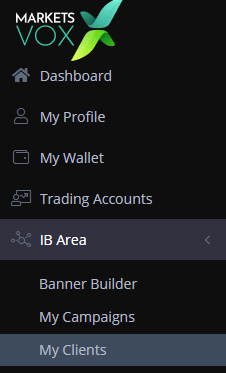
Open My Clients
To view all onboarded clients, the IB navigates to My Clients inside the IB Area. This is the entry point to the client list and individual client profiles.
Generate the My Clients table
Set the From/To date range and click Generate. The MY CLIENTS table populates with every referred client and their activity columns.
- Customer Number (CU)
- Is IB (Yes/No)
- Tier
- Name
- Telephone
- Registration Date
- Referral Status
- FTD (First Time Deposit)
- FTD Date

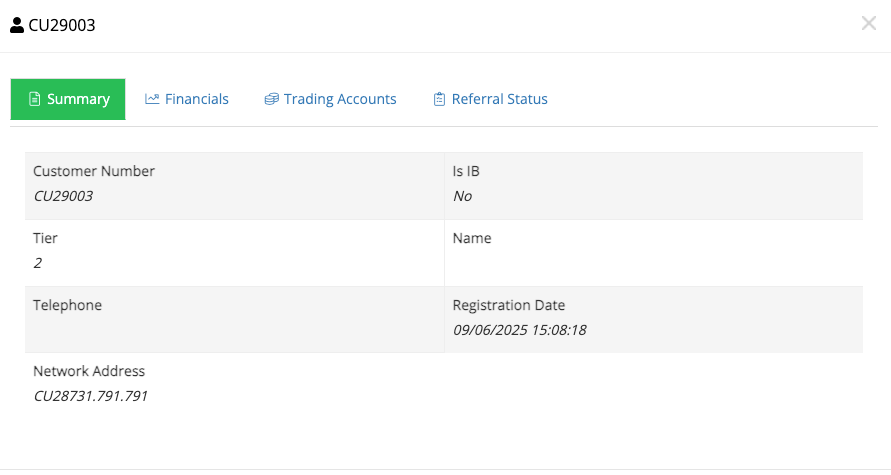
Profile · Summary
From the My Clients table (Step 12), click View Profile on a client row. The Client Profile modal opens at the Summary tab by default, an identity card for the account: CU number, IB status, tier, name, telephone, registration date, and network address.
- From My Clients, locate the client row
- Click View Profile at the right edge of the row
- The Client Profile modal opens at the Summary tab
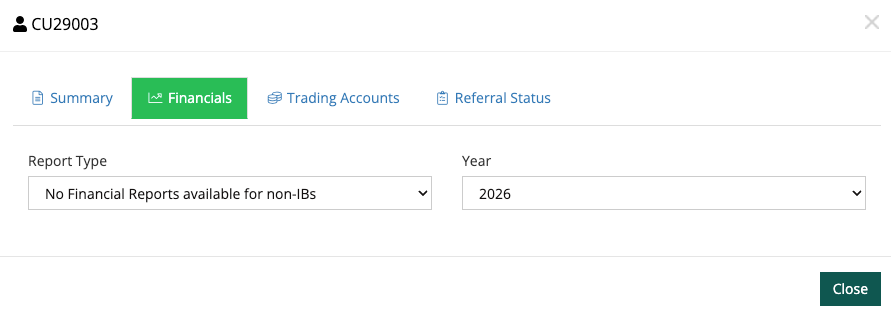
Profile · Financials
The Financials tab in the Client Profile modal shows financial activity. For non-IB clients, the dropdown shows "No Financial Reports available for non-IBs": only IB-flagged accounts surface full financial reports here.
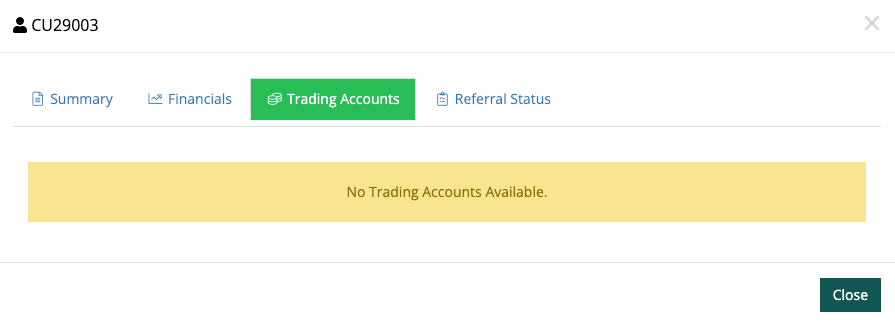
Profile · Trading Accounts
The Trading Accounts tab in the Client Profile modal lists every trading account linked to the client. If none exist, the page shows "No Trading Accounts Available".
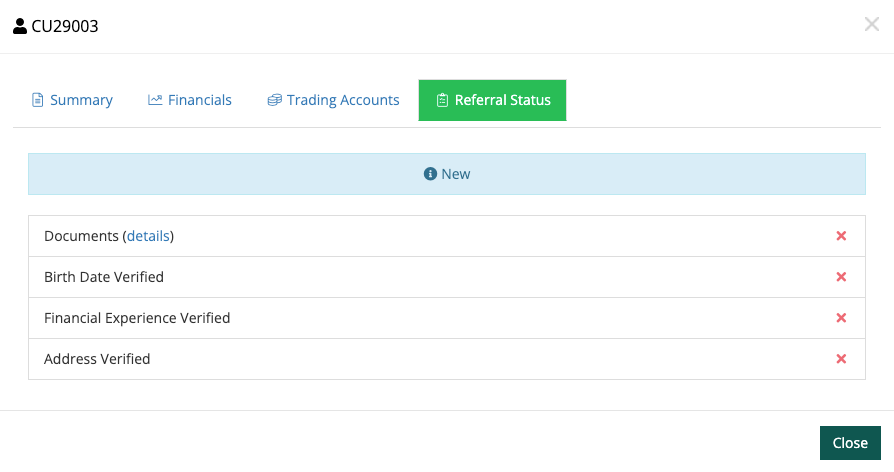
Profile · Referral Status
The Referral Status tab shows KYC verification status across four checks. Red ✗ = not yet completed · Green ✓ = verified.
- Documents: identification documents uploaded
- Birth Date Verified
- Financial Experience Verified
- Address Verified
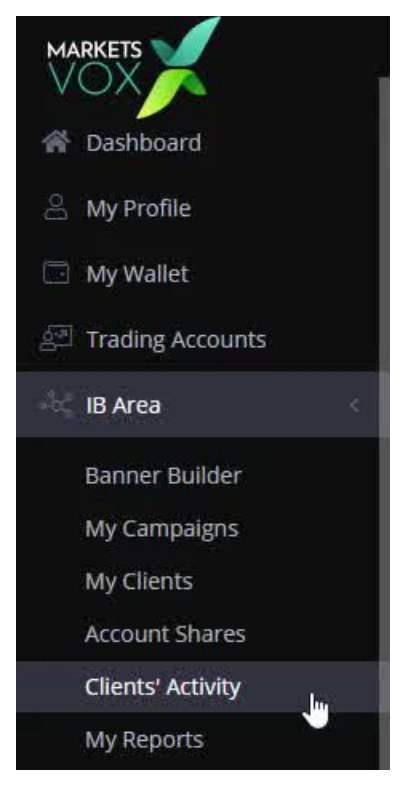
Open Clients' Activity
Beyond the high-level My Clients view, the Clients' Activity section under IB Area shows commissions and trading reports at the individual trade level. Select it from the sidebar to open the page.
Filter the activity
Use the filter bar at the top of the Clients' Activity page to scope which trades you see. Click Generate to populate the table.
- Referrals: all referred clients (default), or a single one
- From / To: the date range for the activity window
- Date/Time Filter: filter mode (e.g. Any)
- Clear: reset all filters · Generate: apply & populate the table

Per-trade detail · Calculation Ref.
Each row in the generated activity table is clickable and opens the full Calculation Ref. detail for that trade. This is where the IB sees the exact commission attributed for each individual trade.
- Customer Number
- Name
- Platform (e.g. MT5)
- Deal (Calculation Ref. #)
- Account Number
- Symbol (e.g. XAUUSD)
- Volume
- Time
- Price
- Swaps
- Commission
Example: Calculation Ref. #6745194, CU29170 · MT5 · XAUUSD · 0.15 lots · $117.00 commission.
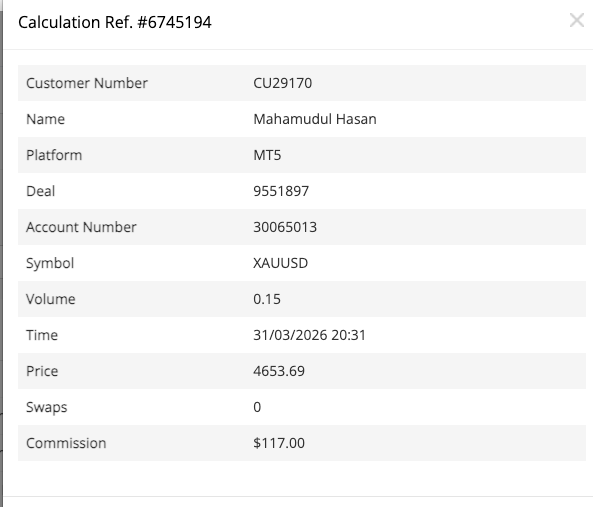
- Click any row to open the per-trade Calculation Ref. detail
- Export the full dataset to Excel
End of Phase 1, IB fully operational
- Account registered & KYC complete (per Doc 01)
- CU number approved as IB on 10X
- Branded sign-up link active & in circulation
- Client list, profile, and per-trade activity visible
- Ready to read the Reports suite, Phase 2
The IB Area contains a My Reports section with seven tabs. Rather than walk through seven near-identical pages, this reference explains the two underlying layout families they share, then indexes what each tab uniquely exposes.
Chart + Year filter + Monthly table + Export
Time-series reports that visualize one or more metrics across the year. Same layout every time: a chart up top, a year selector at top-right with a Refresh button, a monthly breakdown table below, and an Export to Excel button.
Filter panel + Data table + Export
Transaction-level reports for analysis & reconciliation. Filter panel at the top with Generate/Clear actions, a detailed row-level table below, and Export to Excel.
How to use this reference
For any IB question about a specific tab, jump to R2 (Chart Reports) or R3 (Filtered Reports), each tab has a compact reference card with what its chart shows, what columns its table has, and how the IB should use it.
All five tabs share the same Chart + Year filter + Monthly table + Export layout. The cards below show what's unique to each, what the chart series are and what columns the table exposes.
Commission earned
Overview of commission generated from referred clients' trading activity. Track performance, analyze trends, export for reporting.
Client cash flow
Complete overview of financial activity from referred clients, deposits, withdrawals, and the resulting net deposit value over time.
Network growth
Overview of network growth, both clients and partners (sub-IBs). Direct and indirect referrals across multiple levels.
Campaign funnel
Per-campaign performance connecting traffic, registrations, and financial results. Has an extra Campaign selector at the top to switch campaigns.
Acquisition channels
Per-channel performance, connects visibility, user activity, and financial outcomes. Has both Campaign and Channel selectors at the top.
Reading these together
Compare Rebates with Net Deposits to evaluate the quality of referrals. Use Campaign and Channel Analytics to find which sources convert traffic into deposits, not just clicks. Referrals shows scale; the financial tabs show value.
The two transaction-level reports share a different layout, filter panel + data table + export. No chart. These are validation & reconciliation tools, not trend tools.
Trade-level activity
Every trade placed by referred clients. Use to validate that trading activity is occurring, this is what drives rebates. Identify high-value clients by volume & consistency.
Deposit transactions
All financial transactions generated by referred clients, deposits and their statuses. Key financial validation section for IBs.
Reading the Filtered Reports together
Trading History shows what trades happened, Referral Financials shows what money moved. Together they explain whether a slow rebate month is driven by low trading volume, declined deposits, or both.