Copy trading for copiers via MarketVox.
The end-to-end flow for a client signing up to copy a strategy on the 10X platform when they enter through the MarketVox dashboard rather than the 10X dashboard.
End-to-end MV-entry copier flow
Describes how a client signs up to copy a 10X strategy when they enter through the MarketVox (MV) dashboard rather than the 10X dashboard.
Copiers & support staff
- Clients onboarded through MarketVox who want to copy a 10X strategy
- 10X and MV support staff guiding copiers through manual edge cases
Fully self-serve
No manual 10X team action is required to complete subscription, provided the strategies the copier wants to follow are already published to the marketplace.
If a copier is stuck
The most common failure mode is the strategy not being published yet to the marketplace. Confirm strategy is live before troubleshooting copier-side issues.
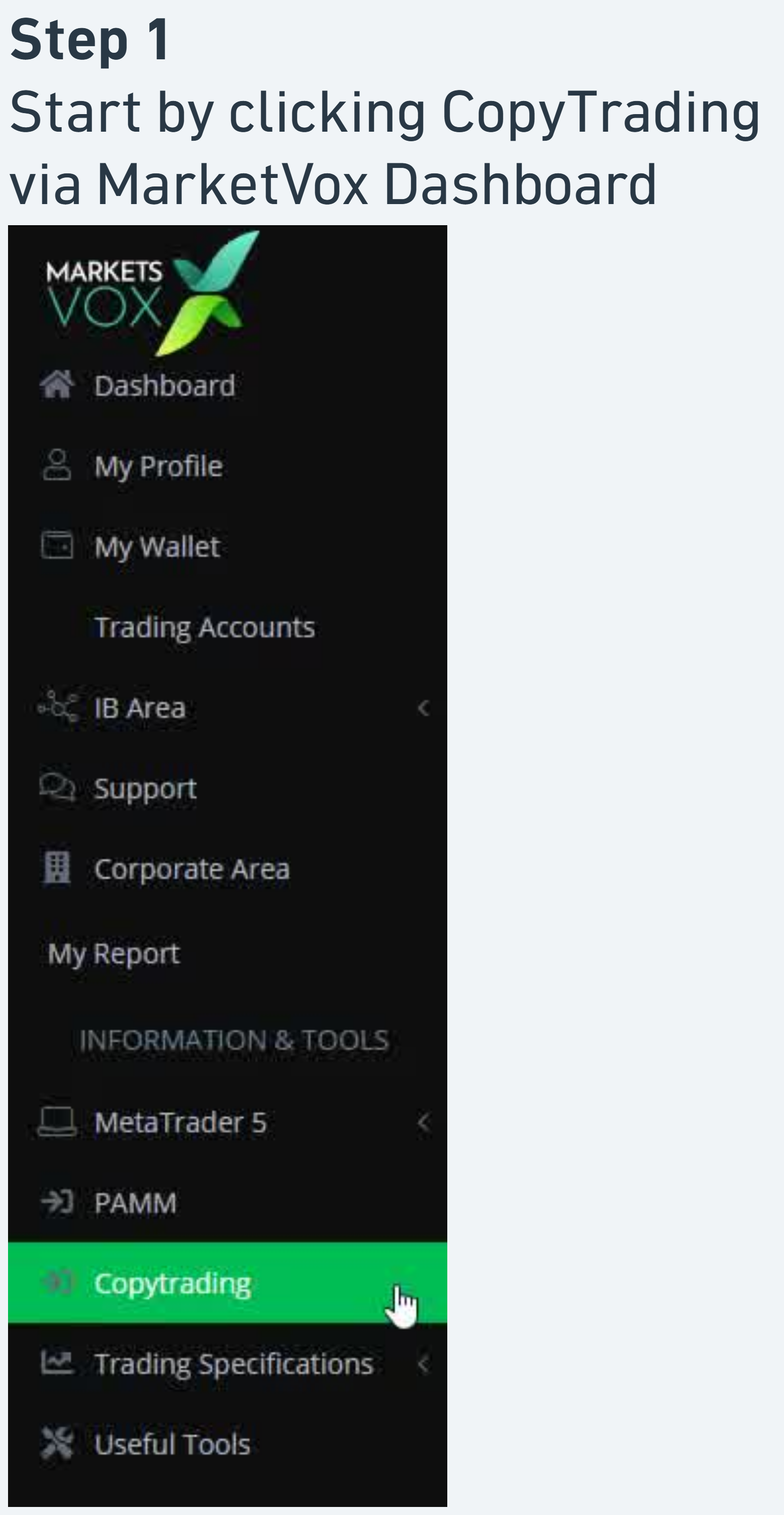
Open CopyTrading inside the MarketVox dashboard
Sign in to the MarketVox client dashboard. In the left navigation sidebar, click on Copytrading.
- Dashboard, My Profile, My Wallet, Trading Accounts
- IB Area, Support, Corporate Area, PAMM
- Copytrading (highlighted, this is the entry)
- Trading Specifications
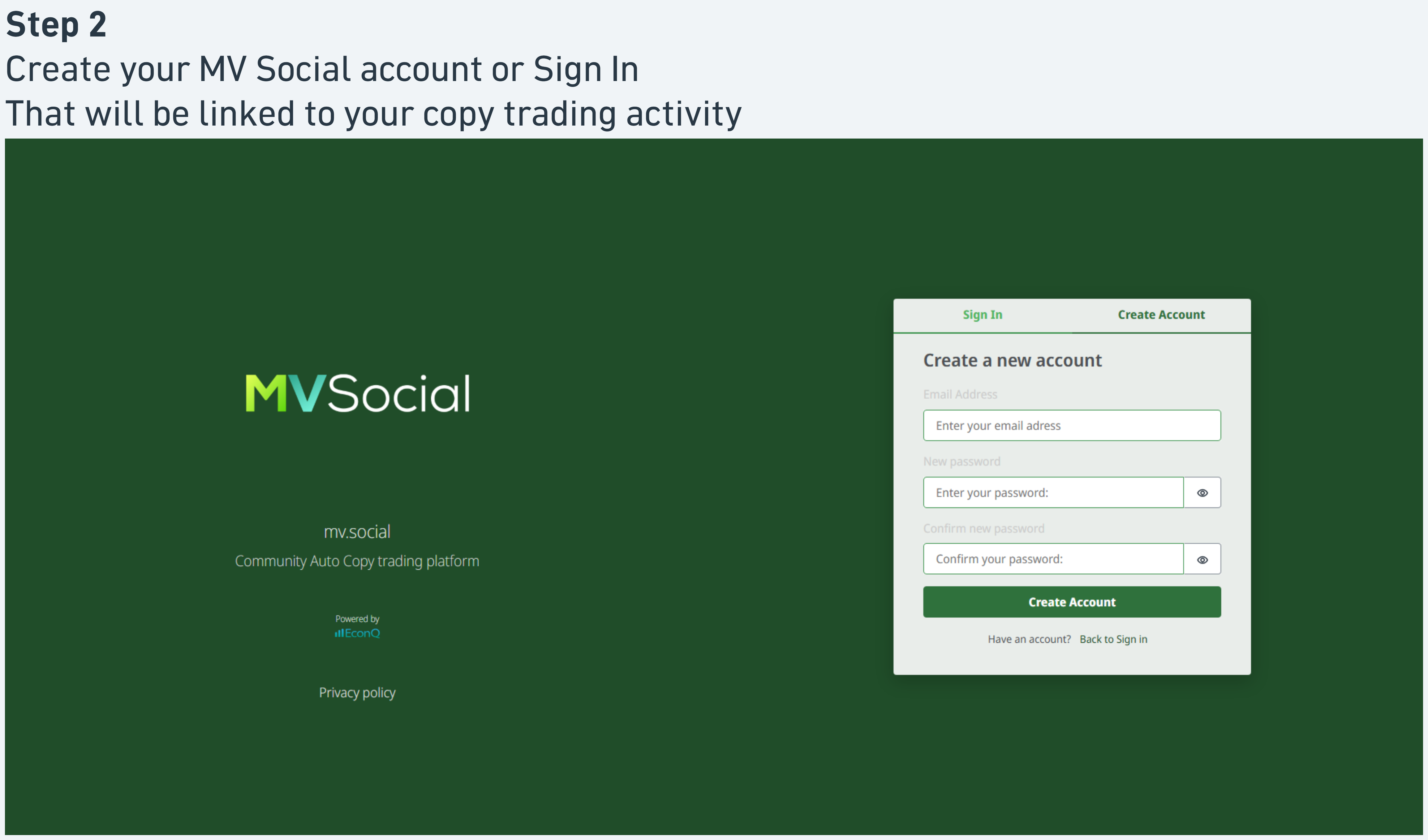
Create your MV Social account
On the MVSocial sign-in screen, choose Create Account and register with the email you want linked to your copy-trading activity. If you already have an MV Social account, sign in instead.
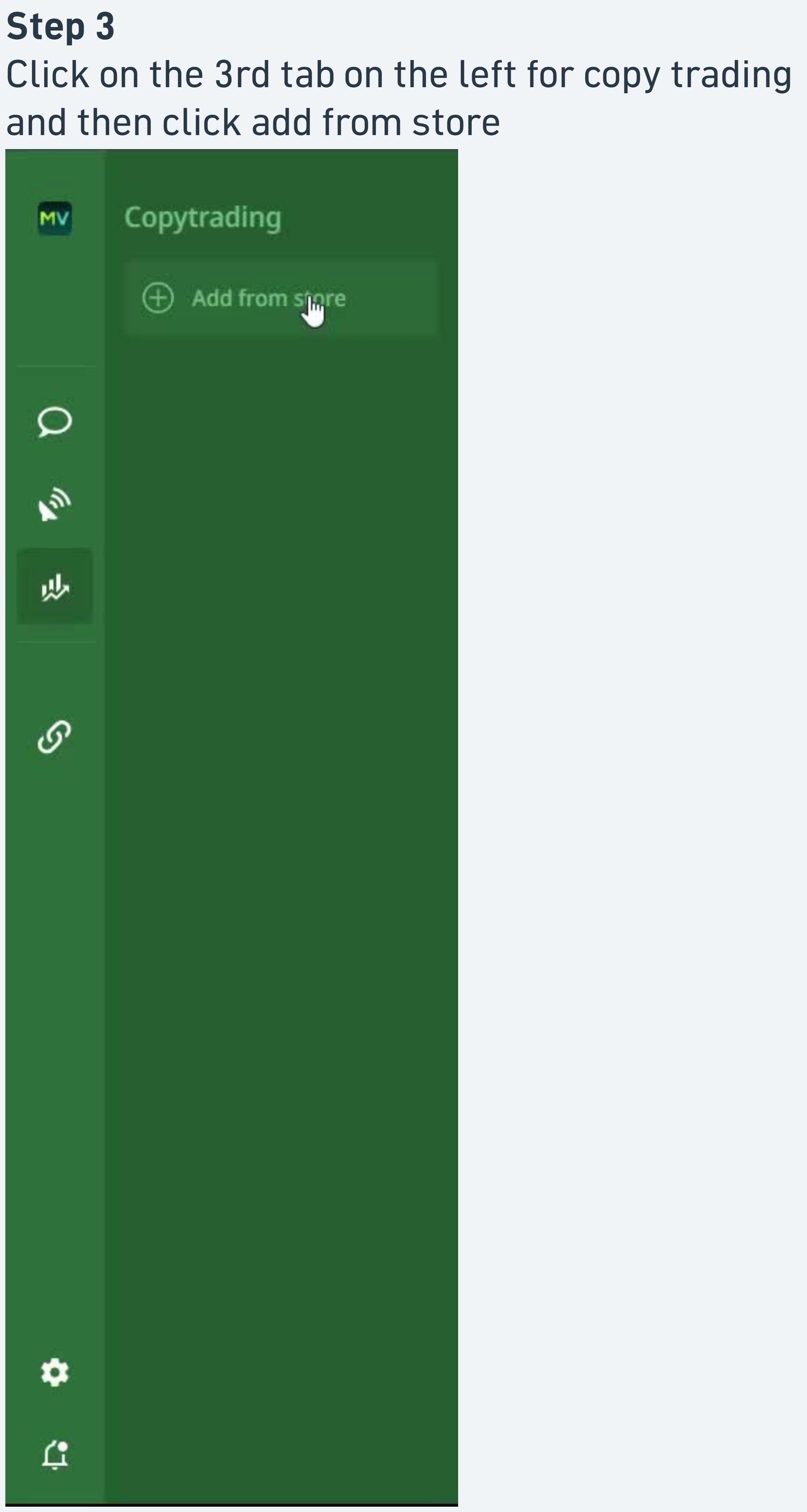
Open the strategy selector
From the CopyTrading panel, open the strategy search. A "Search inside current place" field is shown alongside the strategy list.
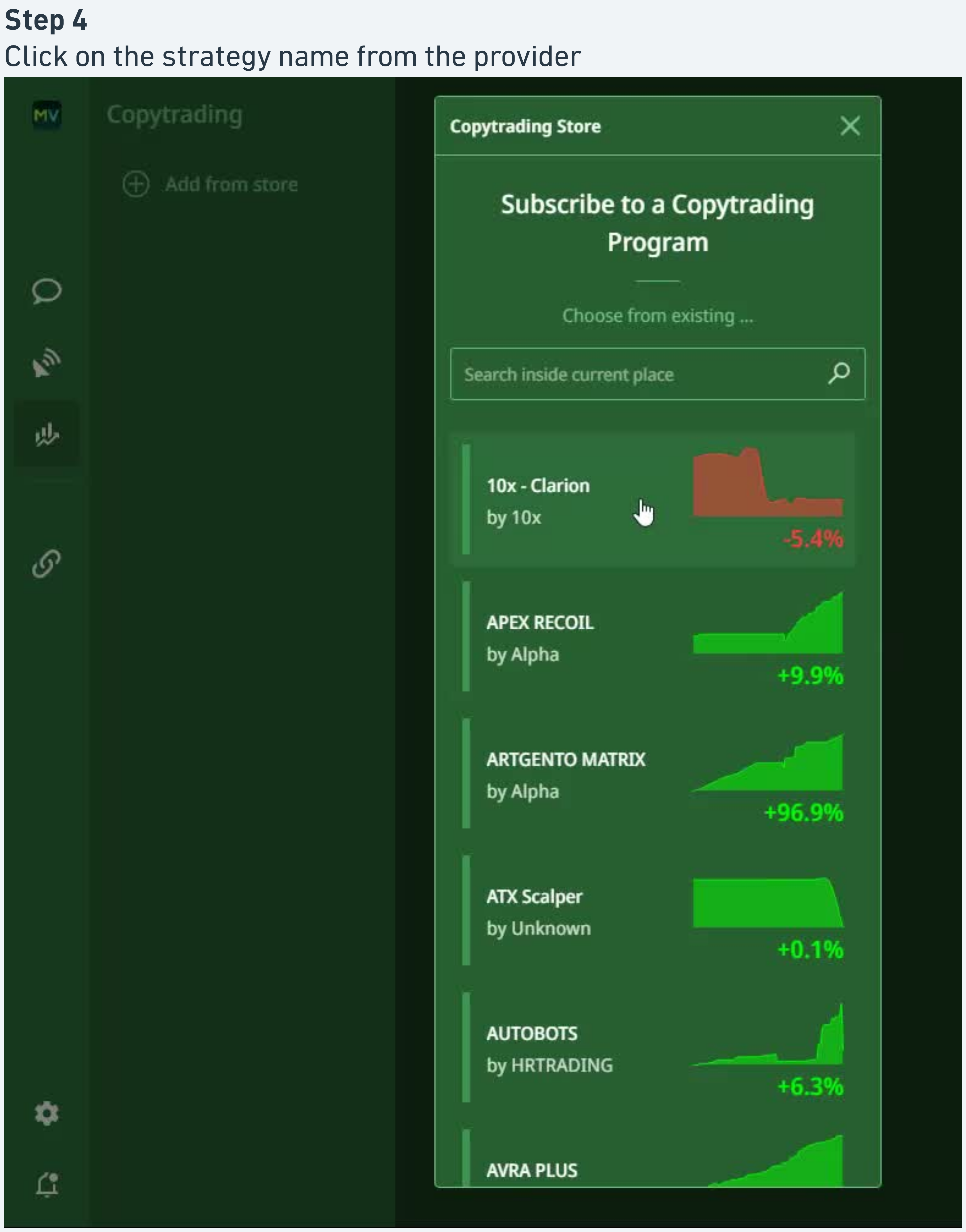
The panel displays strategies as cards with their name, provider, and recent performance.
Click the strategy you want to copy
Inside the Copytrading Store, select the strategy by clicking its name.
- 10X-Clarion by 10X
- by Alpha
- ATX Scalper
- AVRA PLUS
The performance figure for each strategy is shown next to its name.
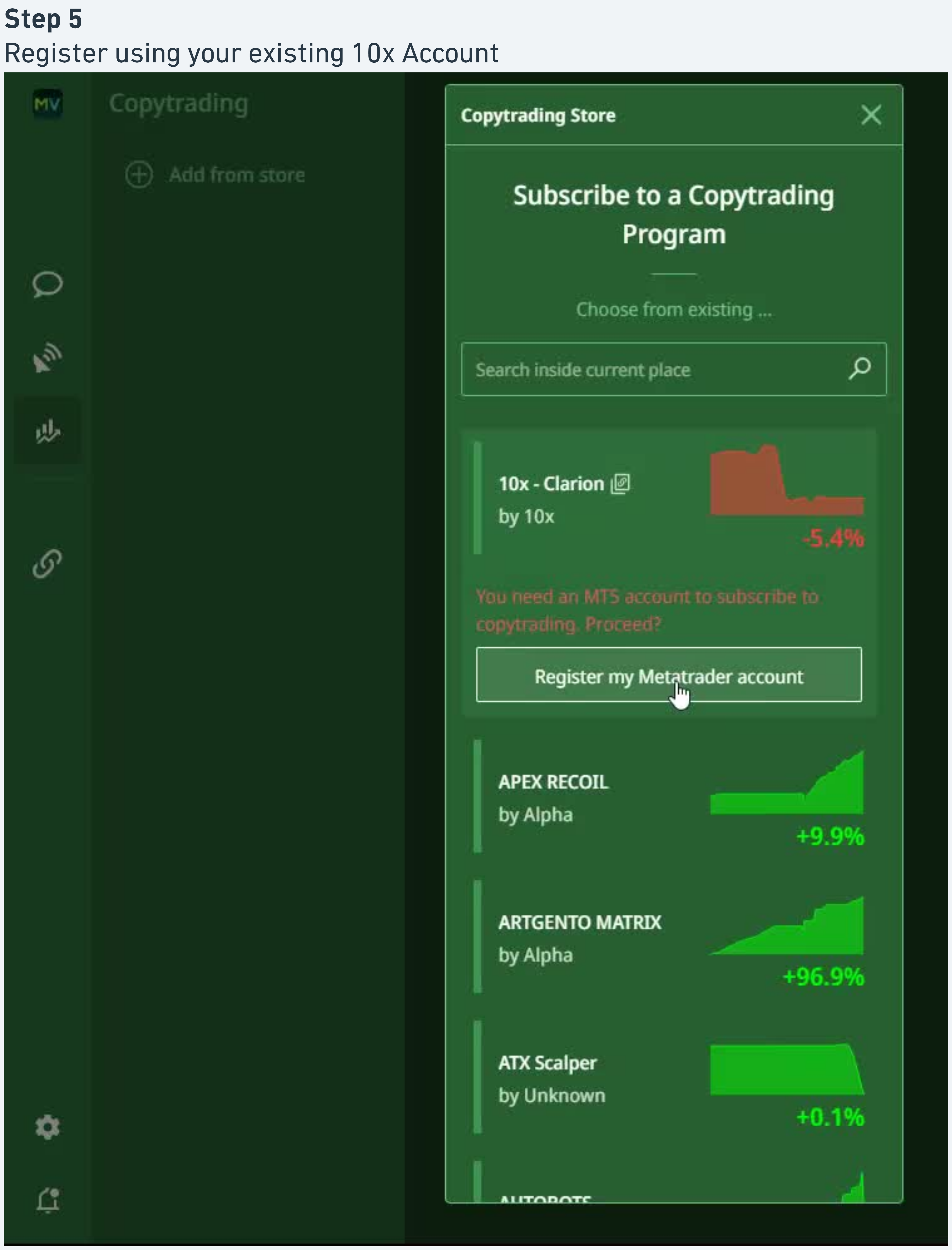
Register your existing 10X trading account
After selecting the strategy, the Program panel displays a "Register my MetaTrader account" action.
Click this to begin linking your live 10X trading account to the copy-trading platform.
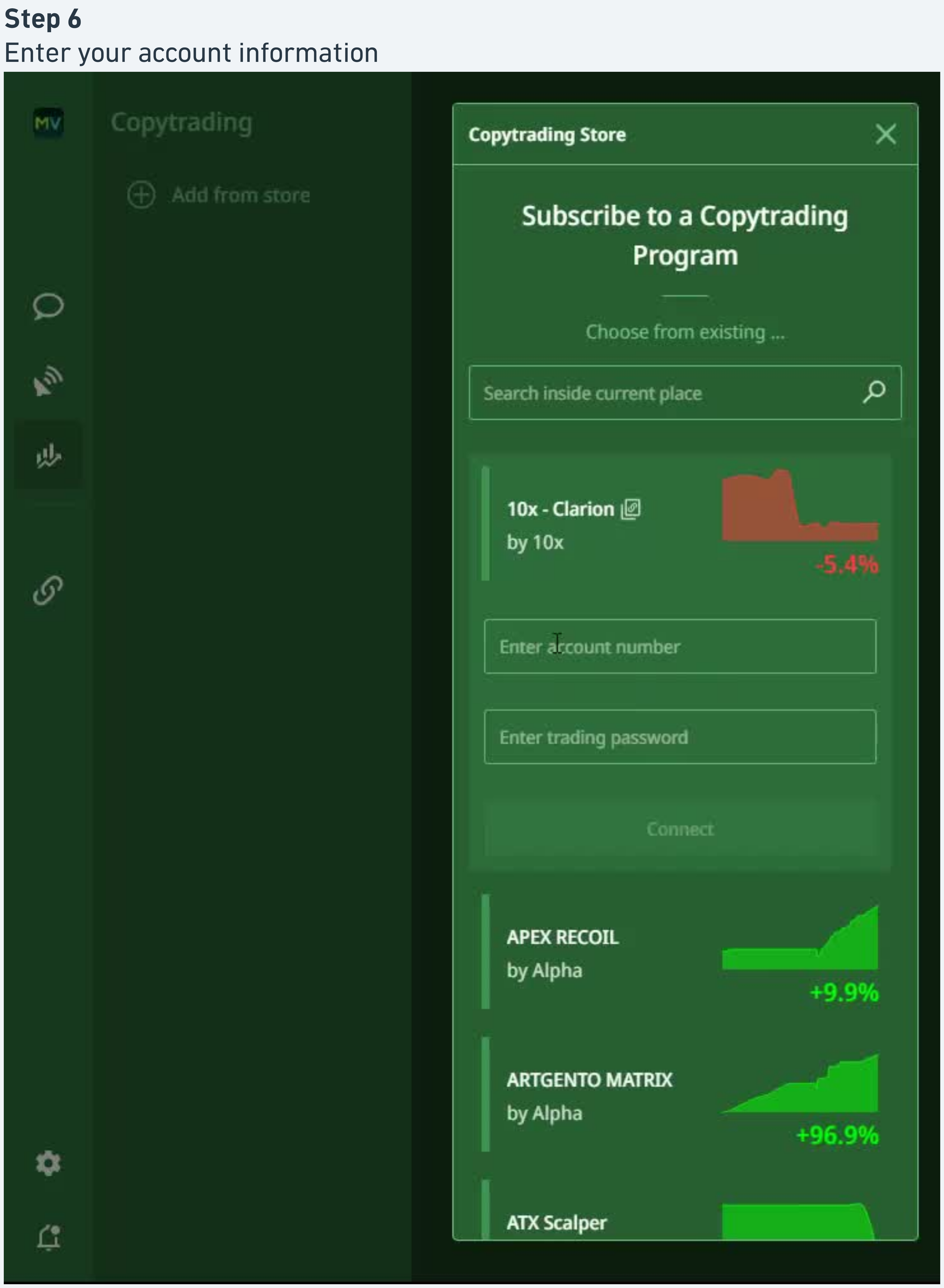
Enter your account information
Provide two pieces of information.
- Account number: your live 10X MT5 account number
- Trading password: the password for that MT5 account
Submit the form to initiate the connection.
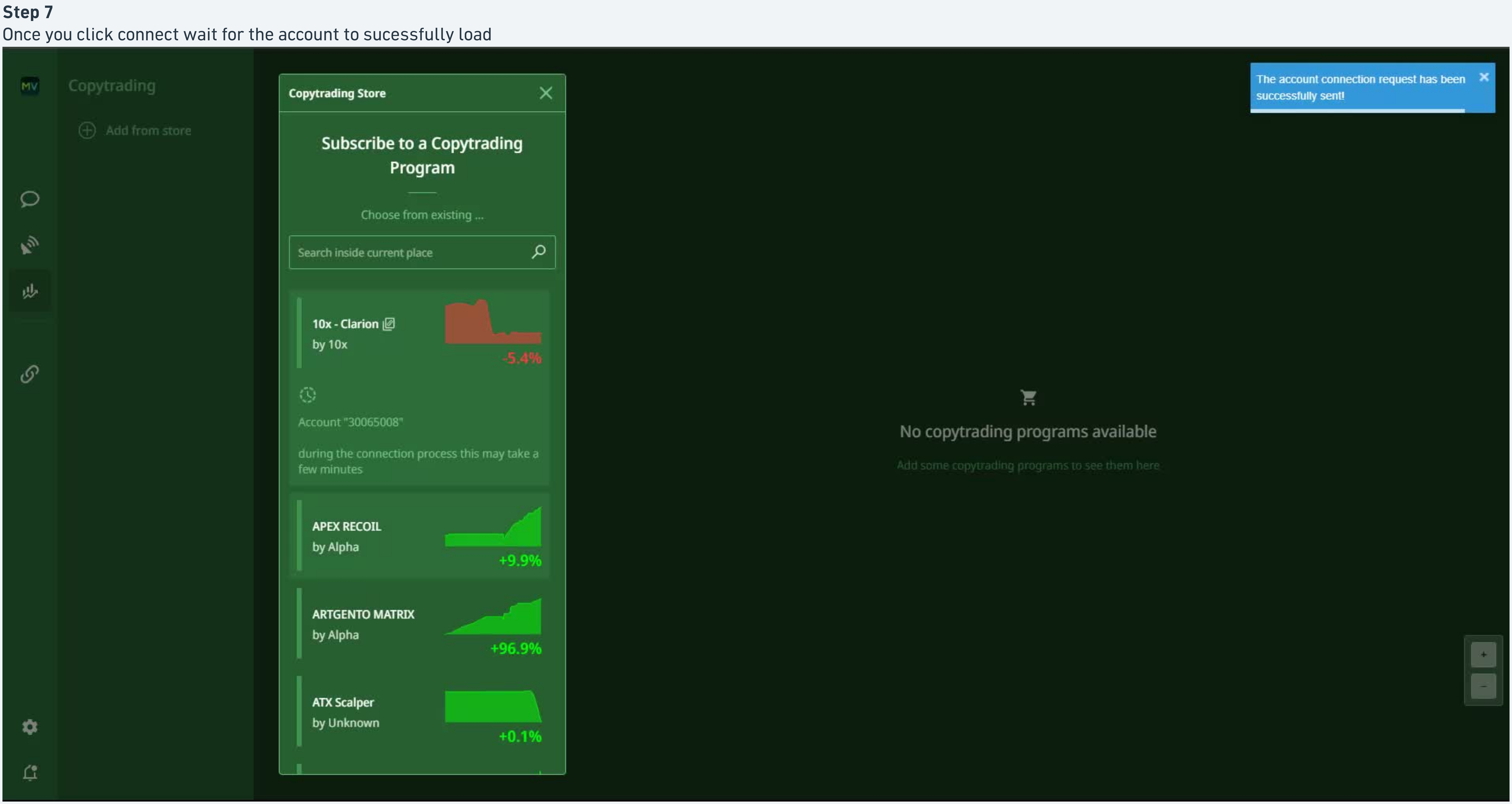
Wait for the account to connect
Once you click connect, the platform attempts to bind your MT5 account. During this connection process you may see a brief loading state.
The panel shows a notice that the connection may take a few minutes. When successful, the account is marked as connected and visible in the Program panel.
If the connection hangs
Refresh the panel. If still not connected after 5 minutes, verify the account number and trading password are correct and that the MT5 account is live (not demo).
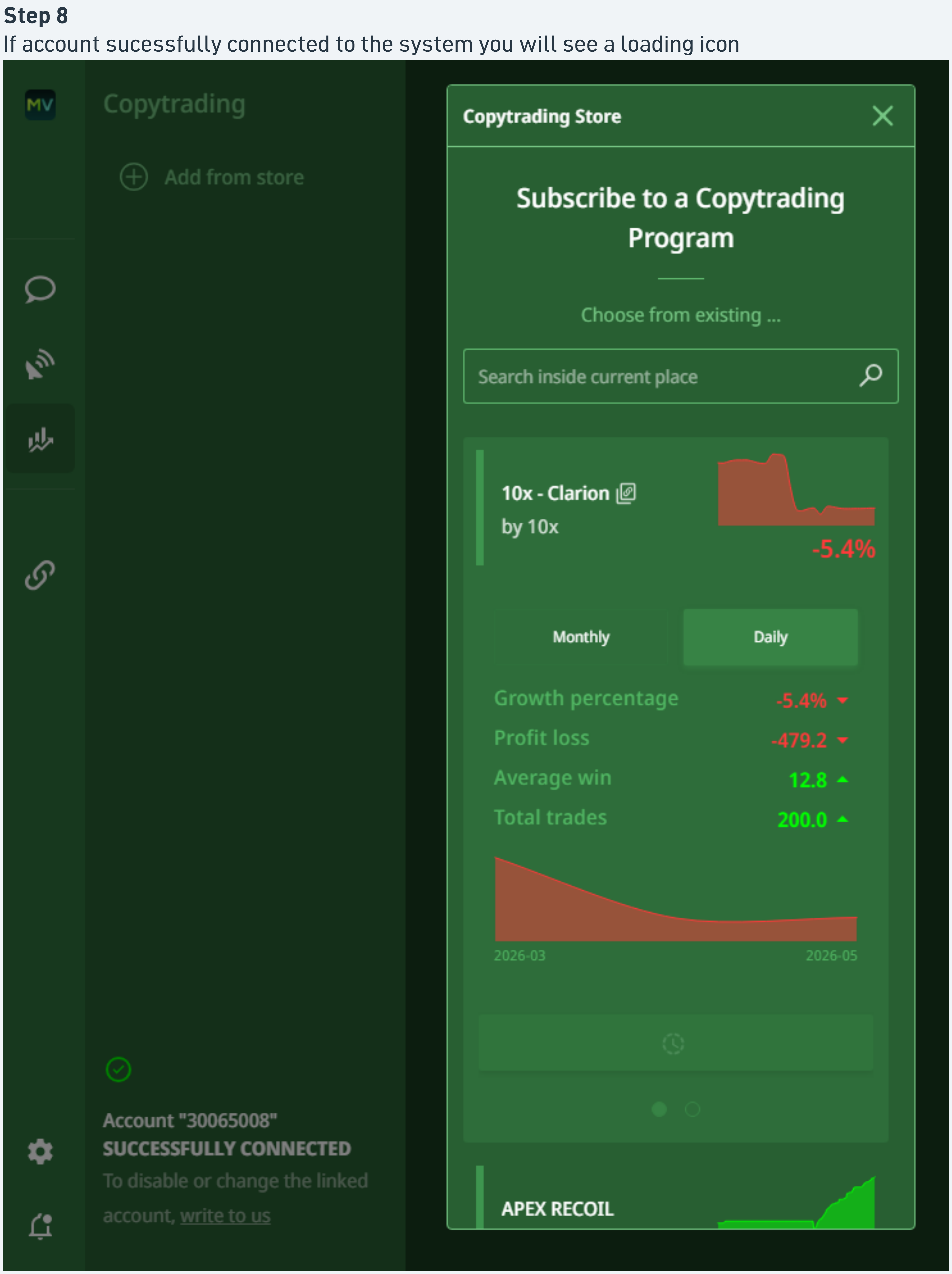
Review program details before subscribing
The "Subscribe to a Copytrading Program" view displays the program summary.
- Strategy name and provider
- Recent performance
- Average win
- Total trades
Confirm the strategy is the one you intend to follow and verify your 10X account is shown as "SUCCESSFULLY CONNECTED".
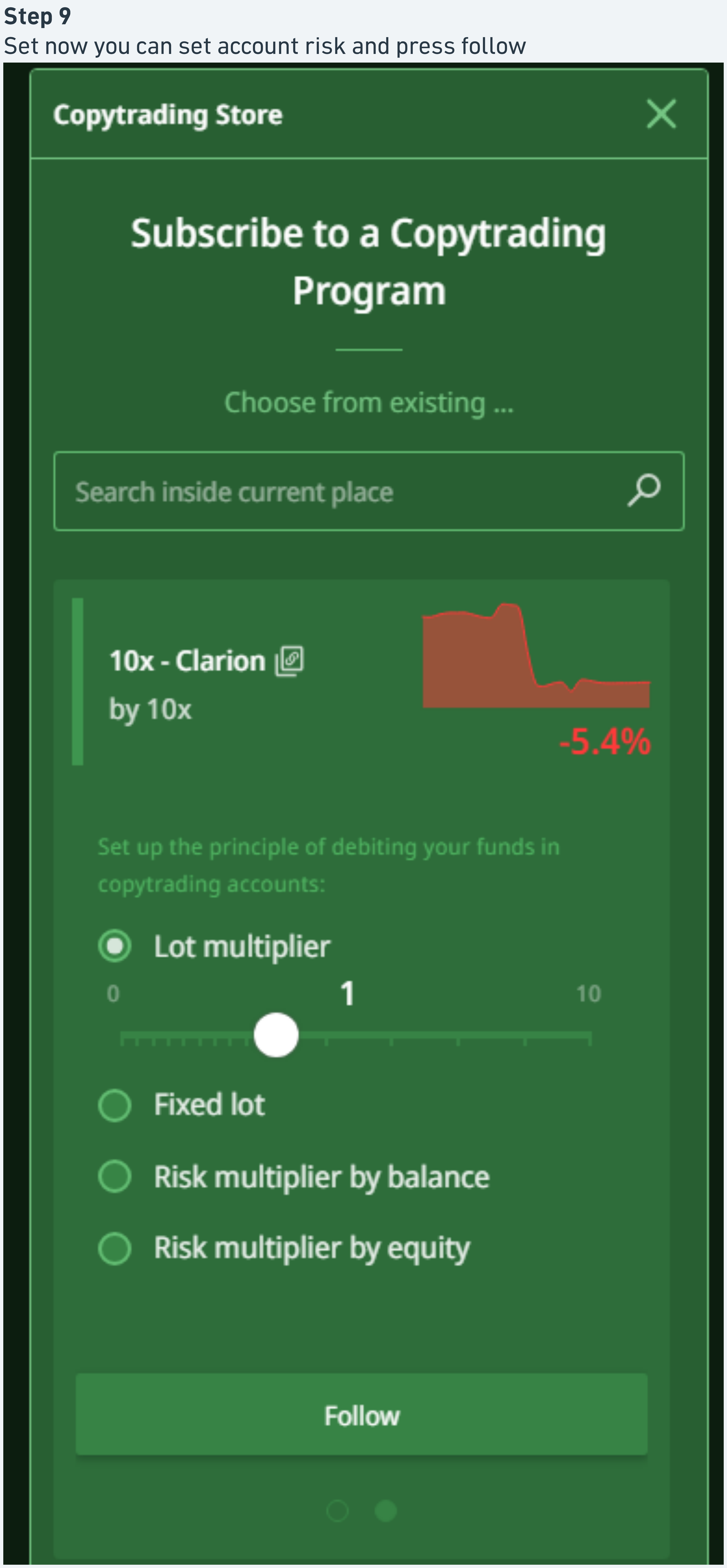
Set account risk and follow
On the same panel, set how aggressively your account mirrors the master strategy.
- Fixed lot: every copied trade uses a constant lot size you define
- Risk multiplier by balance: copied trade size scales with your account balance
- Risk multiplier by equity: copied trade size scales with your live equity
Select one risk option, set the multiplier or lot value, and press the follow action. Your account is now subscribed to the strategy.
Review your subscription on the dashboard
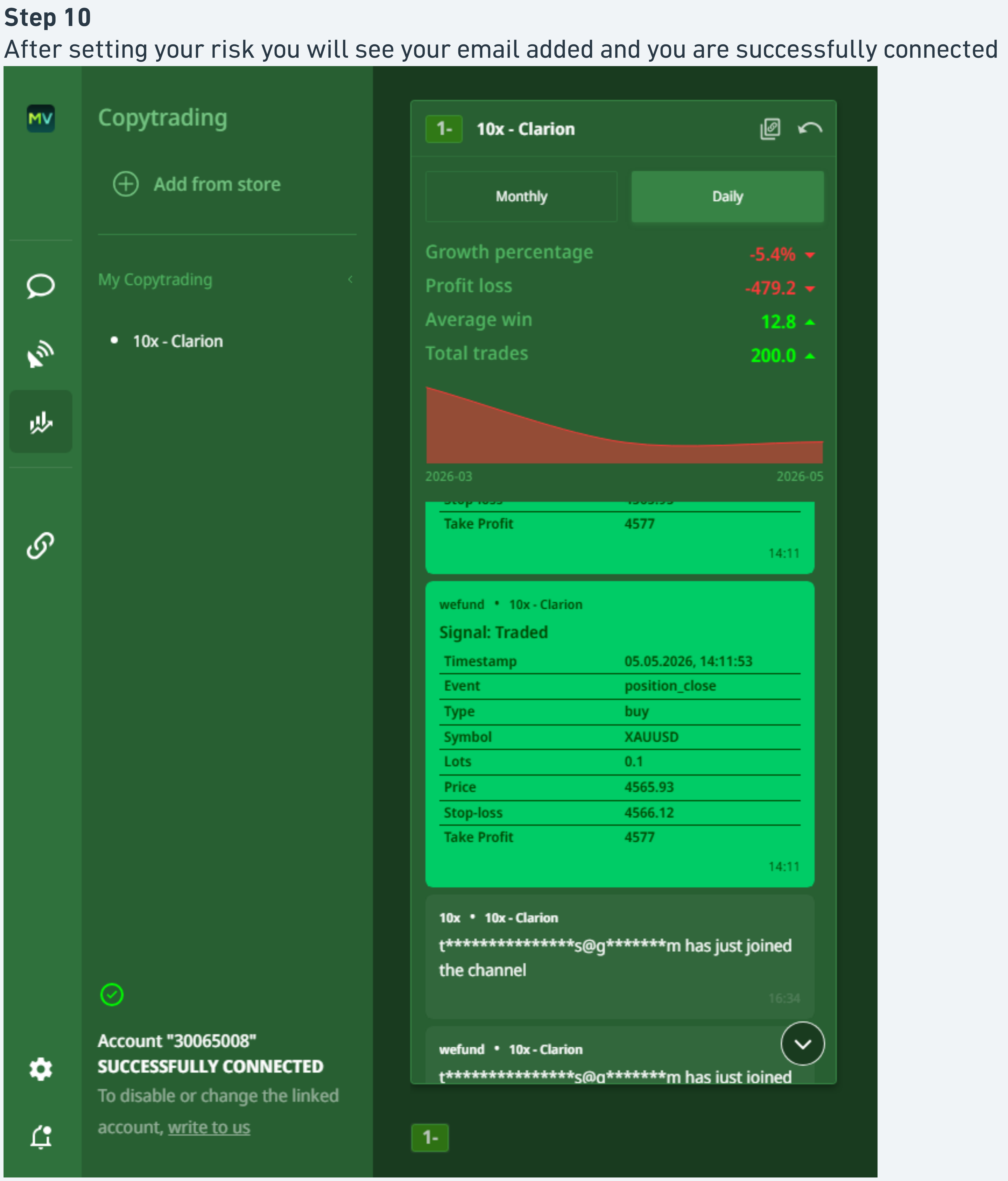
Open the "My Copytrading" view. Your subscribed strategy (for example "10X - Clarion") will appear with full statistics.
- Growth percentage, Profit / loss, Average win, Total trades
- Signal Traded log: each copied event with timestamp, event, type, and symbol
Use this view to confirm trades are being copied as expected.
Manage your subscription in Settings
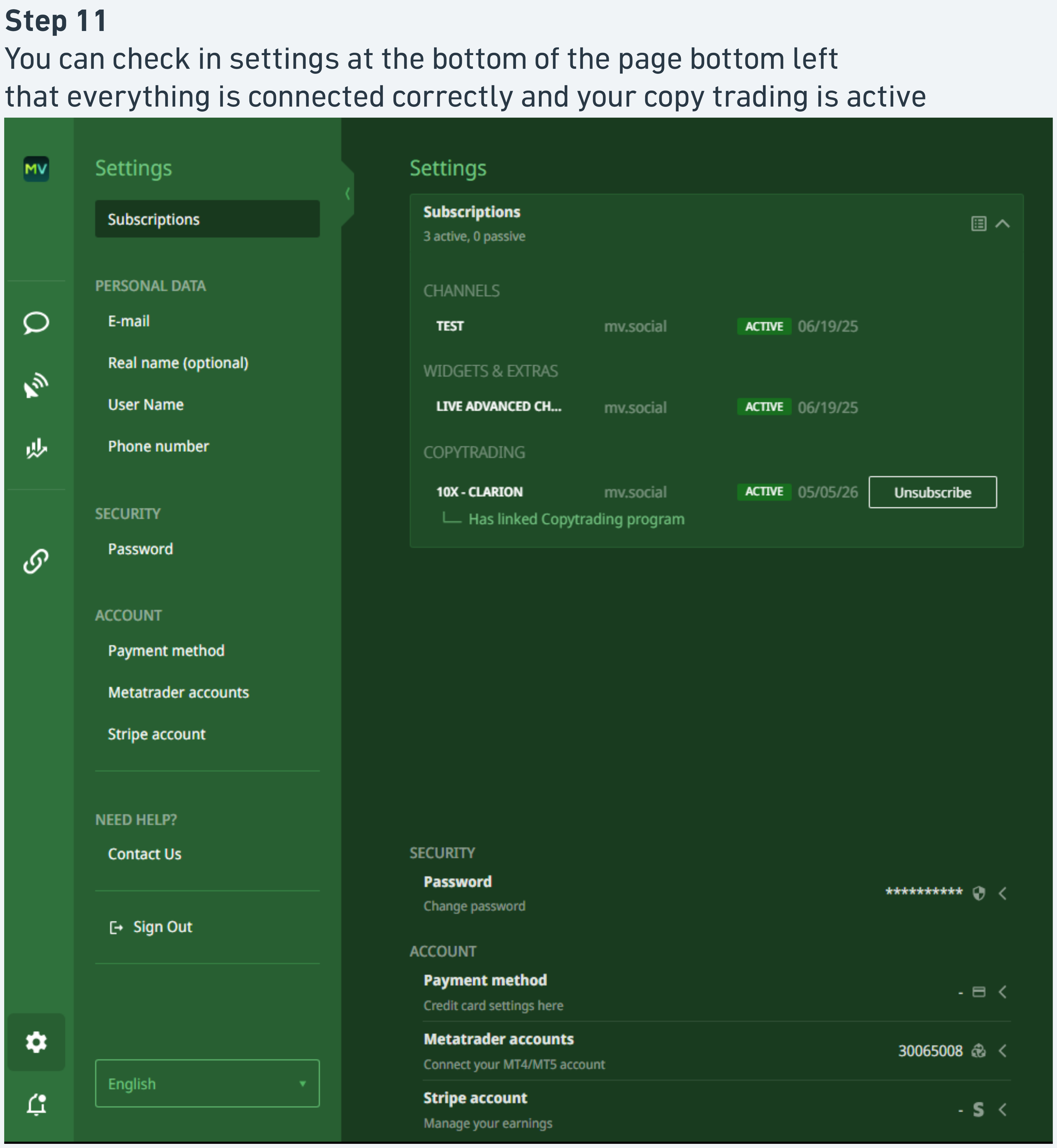
Open Settings via the bottom-left link of the page.
- Subscriptions: list of active and passive subscriptions (e.g. 10X-CLARION mv.social ACTIVE 04/02/26)
- Personal data: email, phone, and account profile fields
- Security: password and Stripe account
- Payment method and Metatrader accounts
Unsubscribe at any time
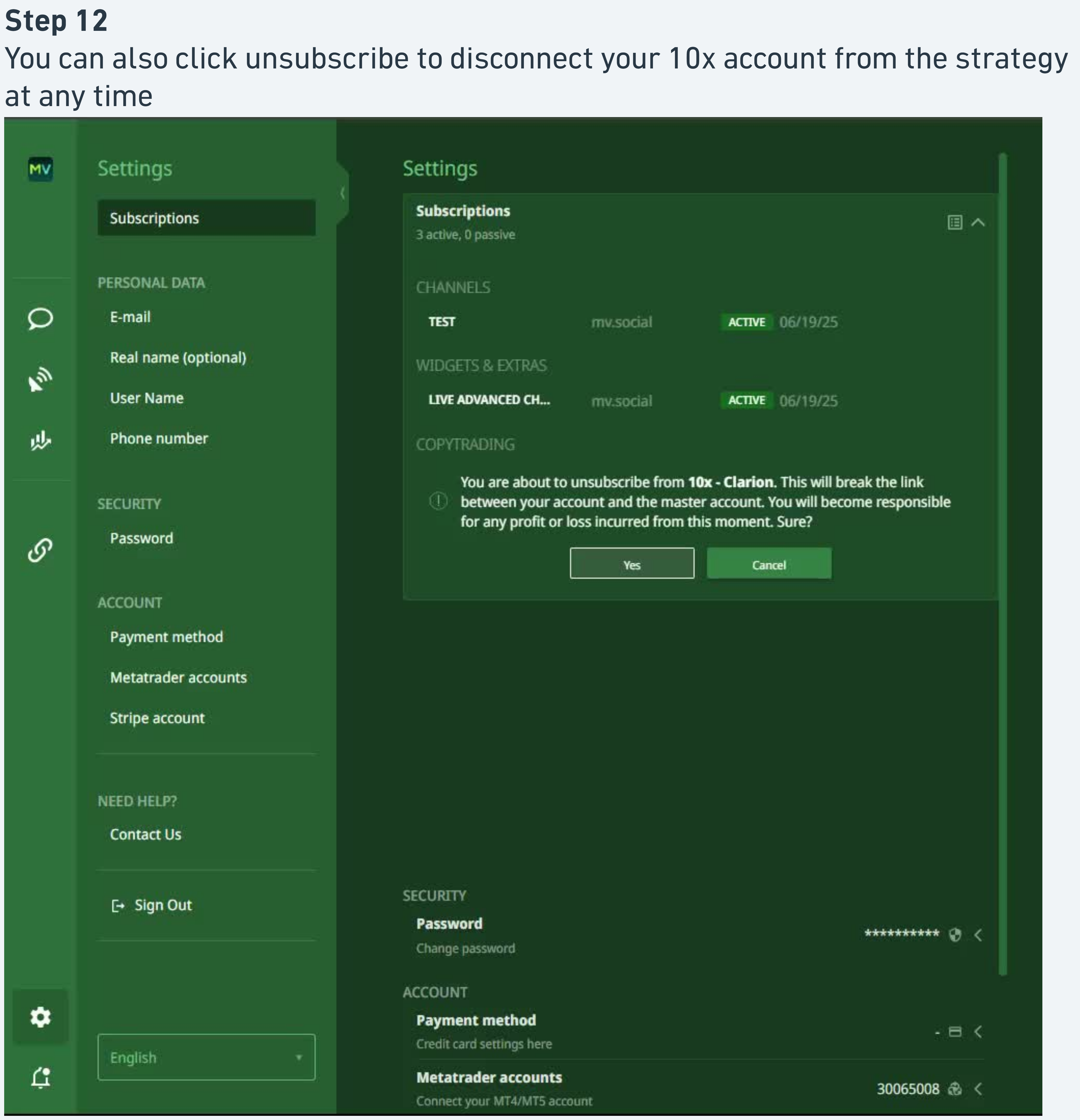
To stop copying a strategy, open the relevant subscription in Settings and click Unsubscribe.
Confirmation modal, read before confirming
A confirmation modal appears with the warning that this will break the link between your account and the master account, and that you will become responsible for any profit or loss incurred from that moment forward. Confirm to disconnect, or cancel to keep the subscription active.
If a copier has hit all four of these signals, the flow is fully complete. If any one is missing, that's the failure point to investigate.
MV Social account created and signed in
The identity layer is established. Without this, no subscription can be associated with the copier.
10X MT5 account registered and shown as SUCCESSFULLY CONNECTED
The live trading account is bound to the platform. Status string must read "SUCCESSFULLY CONNECTED", anything else means the bind failed.
Subscription created against the chosen strategy with a defined risk setting
Risk type (fixed lot / multiplier by balance / multiplier by equity) explicitly set. No default, the copier must choose.
Trades appearing in the Signal Traded log
Final confirmation. Once the master places a trade and it copies through, the log entry appears. If the log is empty after the master has traded, escalate.